Email How-To Tip |
By Robert Graf-Waczenski
Senior Applications Programmer, L-Soft
Asking subscribers to agree to terms and conditions before a subscription is accepted is good practice in both public and internal communications. In this tech tip, you'll learn how to use the special "Subscription Consent" profile field for your email list and how to re-engage and obtain consent from subscribers who had already joined before you added this field.
While it's ideal to include this field when you first create the list, LISTSERV Maestro also supports adding this field later and has powerful features that allow you to contact existing subscribers and ask them to give their consent.
By default, when you create or edit your subscriber list, the consent field is not included.
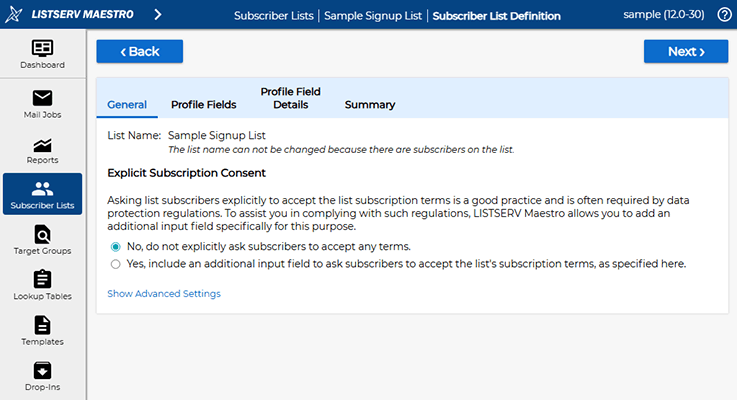
To add this field, switch from the "No" option to the "Yes, Include" option.
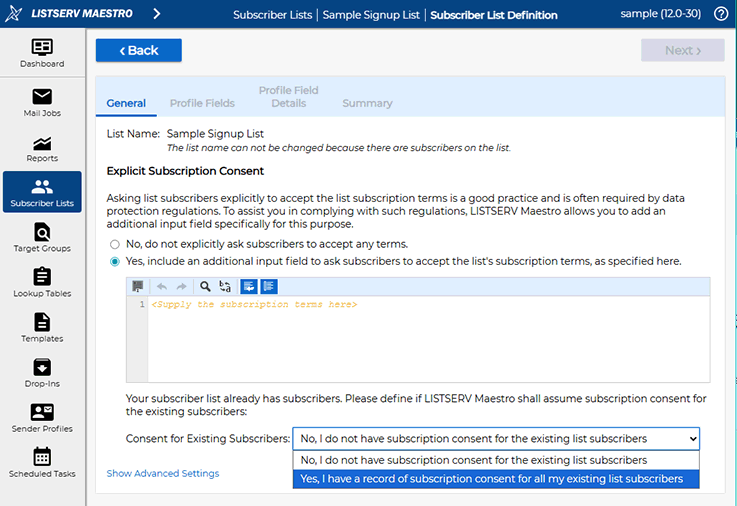
You will now see a question about existing subscribers and whether you have obtained their subscription consent. In most cases, the "No" choice is correct here. You should choose "Yes" here only if you have a clear record of consent given by each subscriber.
You will now enter your subscription terms in the input field, for example:
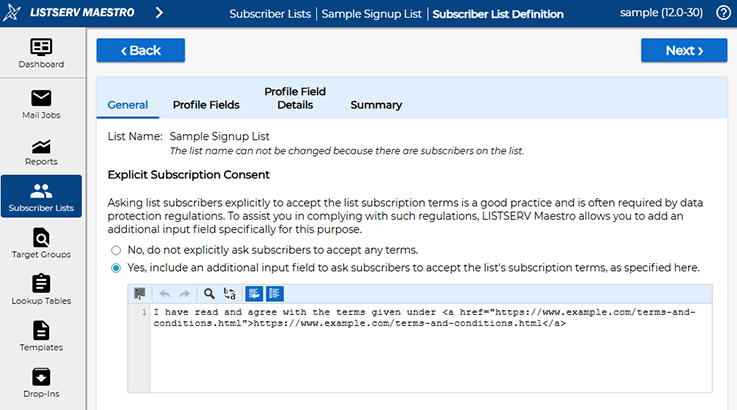
Proceeding to the "Summary" screen and saving the list settings will add this new field to the list. The default value used for existing subscribers will depend on your choice for "Consent for Existing Subscribers". Selecting "No" and adding the field is the only way subscribers with the value "F" can exist on your list.
New subscribers signing up are now presented with this new field during the subscription process.
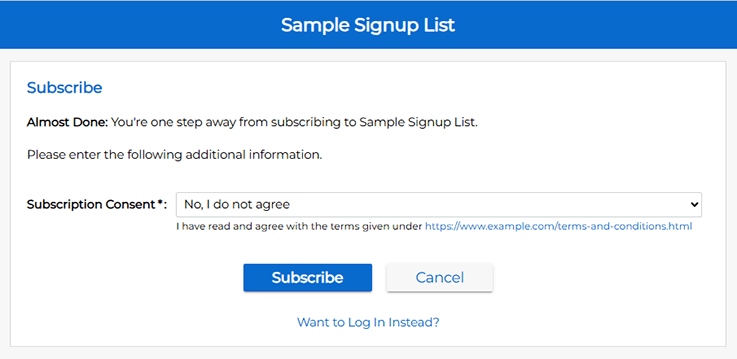
As you can see, the subscription terms are quoted next to the drop-down choice, and if you have HTML code like a link in your terms, then this HTML is rendered. A subscription is only accepted if the user selects the "Yes" option. Otherwise, the following error message is shown.
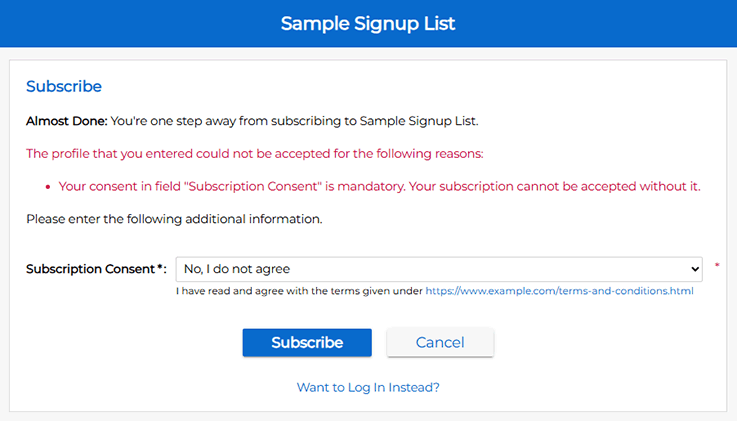
Note that the error message that your subscribers see in this situation is customizable like all other error messages and content on the subscriber website.
If you selected "No, I do not have consent from existing subscribers" when adding the field, then LISTSERV Maestro automatically sets the "false" value in the subscription profiles of these subscribers. At this point, you need to query your existing subscribers, and the best way to do this is by way of a LISTSERV Maestro mail job. Your goal is to, over time, invite as many of your subscribers to update their profile through the "Subscription Profile" screen, which, like the signup screen, will only accept the changes if the "Yes, I agree" selection is given for the consent field. If your subscriber base is very small and you have a verifiable method of asking for subscription consent outside of LISTSERV Maestro, then you can also set the associated values to "true" yourself on behalf of the subscriber.
Setting up such a re-engagement campaign (which can consist of a series of multiple jobs) is straightforward. You start by creating a new mail job as usual and choose your subscriber list with the "Advanced Subscriber Selection" option to define a filter condition on the CONSENT_TO_TERMS field.
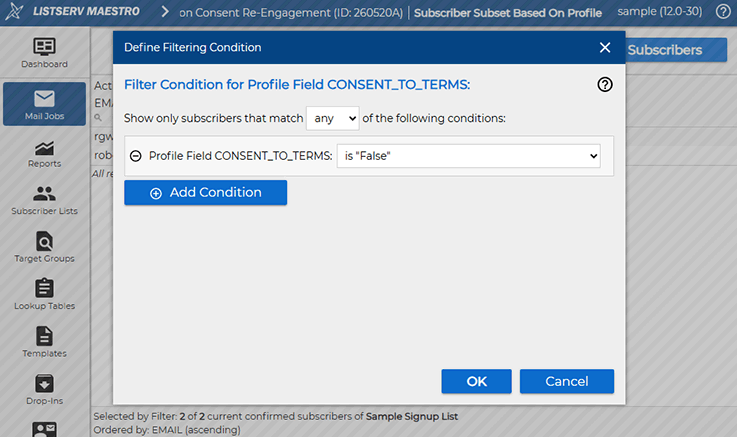
With this condition in place, subscribers who have already expressed consent are excluded. This is good because at the time of delivery of the new job you may already have collected new subscribers through the augmented signup screen, and those profiles will carry the value "true" in the CONSENT_TO_TERMS field.
The content of this mail job should explain to existing subscribers why you introduced the new field and what they are supposed to do to provide consent.
Method 1: Send a Link to the Subscriber Website
If your subscribers are aware of the subscriber website (for example if they signed up through this website originally) or know how to log in with their personal passwords, then you can include a section like the following in your HTML:
|
<p><a href="{{*SubscriberWebsiteURL}}">Subscriber Website</a></p> |
This link will present all subscription profile fields for editing, including the new CONSENT_TO_TERMS field.
Method 2: Craft a Dedicated Screen for the Consent Field
If you don't want your subscribers to have to log in or go through a password definition procedure (which is easy but constitutes an extra step), then you can utilize the {{*ProfileEditPageURL}} drop-in to create a screen that focuses edits on the new field only:
|
<p><a href="{{*ProfileEditPageURL CONSENT_TO_TERMS}}">Give Subscription Consent</a></p> |
When this link is clicked, a screen like this opens, resulting in a clear focus on the subscription consent without any other profile fields.
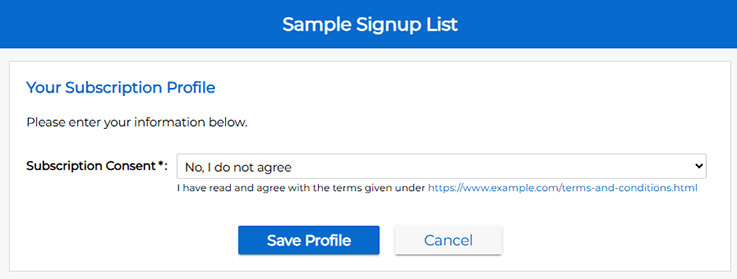
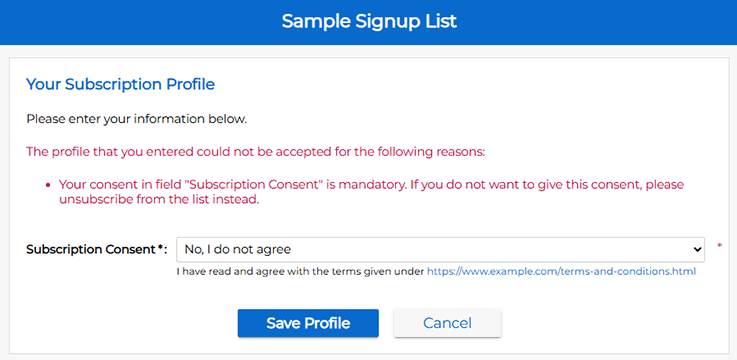
If a subscriber tries to click "Save Profile" and has the "No, I do not agree" choice selected, the following error message is shown.
You are now running your list with the new "Subscription Consent" field included. With the re-engagement job delivered, existing subscribers have received an email with a link that allows them to consent to the new terms and conditions. As is normal in email marketing, you'll have subscribers who ignore your message and fail to follow through and consent to the terms and conditions.
How to act on this set of subscribers should be a responsible and conscious decision on your part. What to do depends on many factors:
LISTSERV Maestro has features that allow you to act on all of these situations.
Was this article helpful to you? Would you recommend it to a colleague? Your input helps us create content that truly supports your work. Thank you!


 Want More Insights? Catch up with the latest LISTSERV developments, industry best practices, expert tips, tutorials and more. |
LISTSERV is a registered trademark licensed to L-Soft international, Inc.
See Guidelines for Proper Usage of the LISTSERV Trademark for more details.
All other trademarks, both marked and unmarked, are the property of their respective owners.